
Embedded Files: Binwalk – Searching for data
Embedded Files: Binwalk – Finding unseen data
Have you ever wondered what sort of data could be embedded into a file?
I don’t mean application resources and other easily found files like, pictures, resources, and data you might find using something such as Resource Hacker, PE Explorer, PPEE (Professional PE file Explorer), or DiE (Detect it Easy). I mean file structures that are embedded in such a way, only the signature is what tells you they are most likely there.
Before we look at binwalk, lets start off with some basics to understand how it works.
The Basics: Viewing Resources
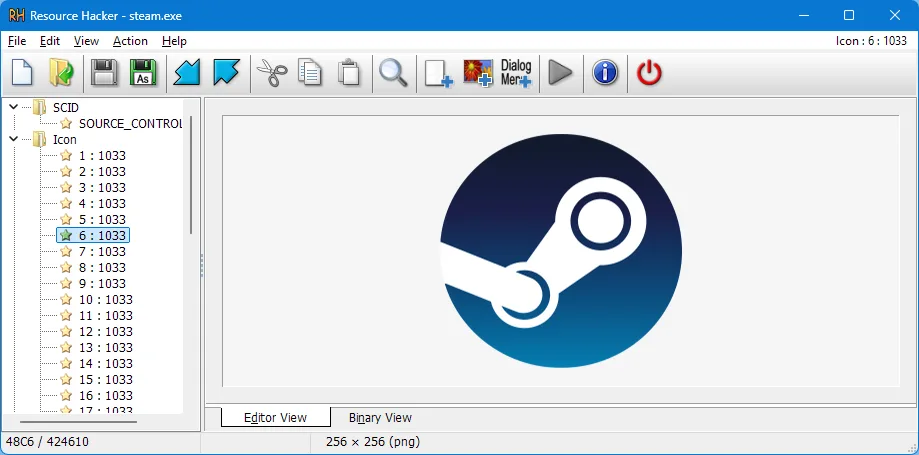
Using Resource Hacker (PE Explorer would work as well) we can, for example, view the icon associated with the executable (steam.exe in this case) and change it if we would like to. Pretty cool if you ask me.
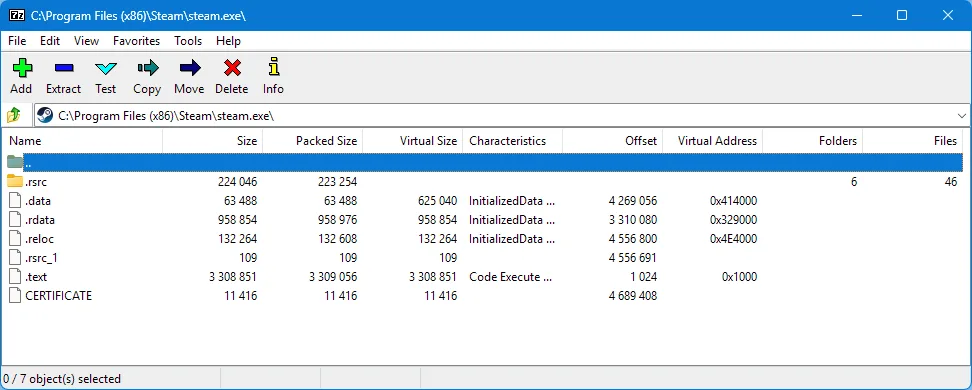
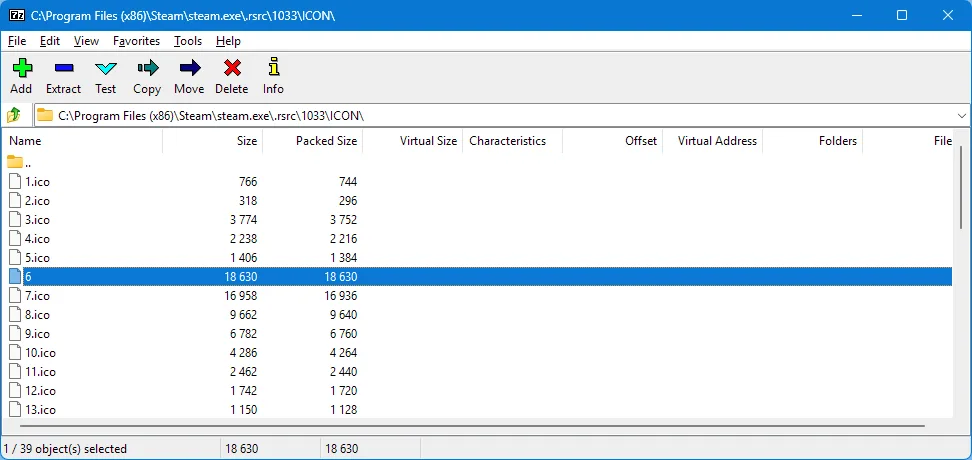
So what else can we do to explorer a little more? If you don’t already know, a lot of the time you can use 7-Zip to view some things, in some files. It won’t show you everything but its a useful thing to keep in mind if you’re trying to view data that might be stored whithin a file. It’s more helpful for self extracting archives and files that have archives stored in them. You might be surprised at what you find if you start poking around! Below is the same .exe opened with 7-Zip. What you see below is the root “folder” containing the PE Sections and the Resource Table folder, then below, the same resource we have selected in Resource Hacker in the example above.
If you find this interesting or just want to learn more about the PE file format of x86 executable files, here are a few links to get you started:
- OS Dev Wiki
- Wikipedia
- Microsoft
- Medium – PE File Structure Explained : A Guide to for Reverse Engineers & Developers
Understanding: Its Magic Numbers!
If you dug around and read a bit from those links above, you may have noticed something – the “magic number” or “magic byte(s)”. The magic of those 2 bytes (it can be larger) is that it’s actually the file (type) signature or what tells the OS and other applications, the expected contents or type of file it is. Apologies if that’s a bit wordy.
Now that we have taken a quick look at the resource for “steam.exe”; Have you ever wondered how 7-Zip knows something is an archive that it can extract? You might think it’s looking at the structure of the file, and while possible, it would waste precious resources to do so; and it can be validated during extraction. What it’s actually doing, is looking for the file signature or those magic bytes at the beginning of a file used to identify what kind of file it is without relying on the file extension. Neat huh? You could change the extension to “.8z” and it would still extract just the same.
So, if you ever wondered how the OS knows a given file is an executable even if you remove the .exe file extension, now you know! The beauty of this is that not only can we have some fun with it, we can use them to identify files embedded within other files! One fun things you can do by manipulating the magic bytes is to spoof a file type to circumvent file uploads that filter the file types you may upload.
Getting a PHP Reverse Shell through an image upload web page exploit via magic byte manipulation.
Above we are looking at “steam.exe” but executable files aren’t the only file type with a file signature. The specific byte pattern 7-Zip uses to identify a “.7Z” file is “37 7A BC AF 27 1C” in hexadecimal, which if we take a look at an archive with a hex editor, it looks like this:
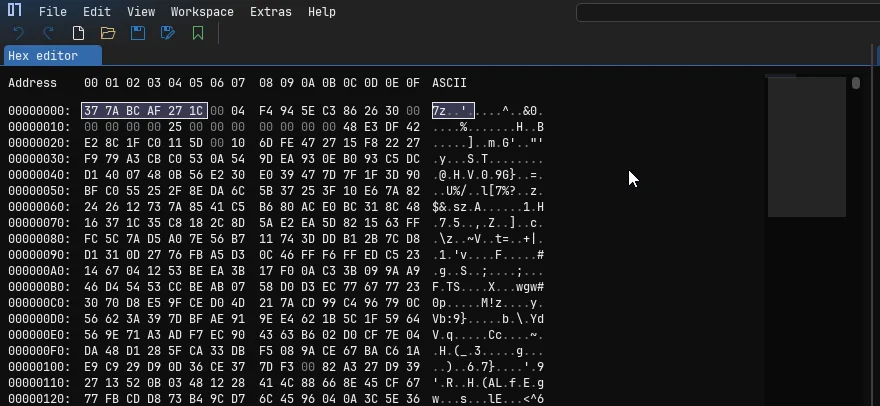
The same is true for Windows Executable (.exe) files, with a different signature. In this case it actually shares the same signature with a few other file types – COM, DLL, DRV, EXE, PIF, QTS, QTX, and SYS.

Fun fact: “MZ” are the initials of Mark Zbikowski, one of leading developers of MS-DOS.
For anyone that is curious, the hex editor I’m using is ImHex and it’s by far (to date) my absolute favorite hex editor. It has a ton of cool and useful feature, including analysis, pattern searching, YARA rules and its own custom language “PatternLanguage“. You should check it out if your looking to find or try a new open source hex editor out.
Finding Known Signatures
Since we now understand what they are, how many are there? basically infinite since the magic bytes are decided by the creator / developer of a given file type. There are quite a few common ones you will usually find: exe, dll, com, jpg, png, etc. This is where its nice to have a list of known signature you can find:
- GCK File Signature Table (My favorite)
- List of File Signatures (Wikipedia)
Keep in mind, if you can’t find a signature for something publicly, you can “create” your own. A signature is just a unique byte pattern that can be used to identify a file or anything else. Hopefully its at the start or end of a file. Otherwise you’re looking for any pattern that spans multiple files of the same type. (ie. you see XY or ’58 59′ at the beginning of every file).
Discovering Data: Binwalk
GitHub Repository – https://github.com/ReFirmLabs/binwalk
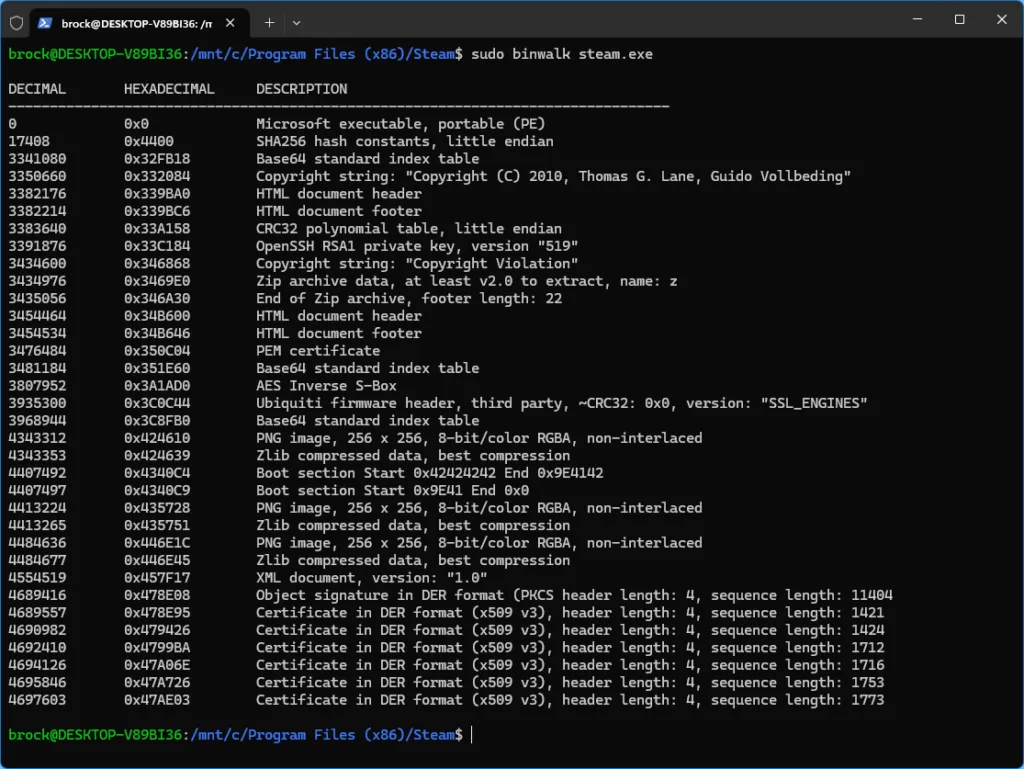
Now that we understand what file signatures are and how they work, we actually already understand how Binwalk works to identify embedded files! Originally written to find embedded data within firmware files (usually .bin) it can be used on any file! So lets take a look at steam.exe again, and see what binwalk finds.

Just above is another example using my motherboards BIOS update file – Just to show you some other things it finds. You can also check this GitHub page to view the most up to date signatures binwalk detects.
$ binwalk --list
----------------------------------------------------------------------------------------------------
Signature Description              Signature Name                     Extraction Utility
----------------------------------------------------------------------------------------------------
7-zip archive data                 7zip                               7zz
AES Acceleration Table             aes_acceleration_table             None
AES Forward Table                  aes_forward_table                  None
AES RCON                           aes_rcon                           None
AES Reverse Table                  aes_reverse_table                  None
AES S-Box                          aes_sbox                           None
Android boot image                 android_bootimg                    None
Android sparse image               android_sparse                     Built-in
Apple Disk iMaGe                   dmg                                dmg2img
APple File System                  apfs                               7zz
Arcadyan obfuscated LZMA           arcadyan                           Built-in
ARJ archive data                   arj                                7zz
Autel obfuscated firmware          autel                              Built-in
BIN firmware header                binhdr                             None
BMP image (Bitmap)                 bmp                                Built-in
BTRFS file system                  btrfs                              None
bzip2 compressed data              bzip2                              Built-in
CFE bootloader                     cfe                                None
CHK firmware header                chk                                None
compress'd data                    compressd                          7zz
Copyright text                     copyright                          None
CPIO ASCII archive                 cpio                               7zz
CramFS filesystem                  cramfs                             7zz
CRC32 polynomial table             crc32                              None
CSman DAT file                     csman                              Built-in
D-Link Encrpted Image              encrpted_img                       Built-in
D-Link MH01 firmware image         mh01                               Built-in
D-Link TLV firmware                dlink_tlv                          Built-in
Dahua ZIP archive                  dahua_zip                          Built-in
Debian package file                deb                                None
Device tree blob (DTB)             dtb                                Built-in
DirectX shader bytecode            dxbc                               Built-in
DKBS firmware header               dkbs                               Built-in
DLK encrypted firmware             dlke                               Built-in
DLOB firmware header               dlob                               None
DMS firmware image                 dms                                Built-in
DOS Master Boot Record             mbr                                Built-in
DPAPI blob data                    dpapi                              None
eCos kernel exception handler      ecos                               None
EFI Global Partition Table         efigpt                             7zz
ELF binary                         elf                                None
EXT filesystem                     ext                                tsk_recover
FAT file system                    fat                                tsk_recover
GIF image                          gif                                Built-in
GPG signed file                    gpg_signed                         Built-in
gzip compressed data               gzip                               Built-in
HP Printer Job Language data       pjl                                None
Intel serial flash for PCH ROM     pchrom                             uefi-firmware-parser
ISO9660 primary volume             iso9660                            7zz
JBOOT firmware header              jboot_arm                          None
JBOOT SCH2 header                  jboot_sch2                         Built-in
JBOOT STAG header                  jboot_stag                         None
JFFS2 filesystem                   jffs2                              jefferson
JPEG image                         jpeg                               Built-in
Known encrypted firmware           encfw                              Built-in
Linux ARM boot executable zImage   linux_arm_zimage                   None
Linux kernel ARM64 boot image      linux_arm64_boot_image             None
Linux kernel boot image            linux_boot_image                   None
Linux kernel version               linux_kernel                       vmlinux-to-elf
LogFS file system                  logfs                              None
LUKS header                        luks                               None
LZ4 compressed data                lz4                                lz4
LZFSE compressed data              lzfse                              lzfse
LZMA compressed data               lzma                               Built-in
LZO compressed data                lzop                               lzop
Matter OTA firmware                matter_ota                         Built-in
MD5 hash constants                 md5                                None
Microsoft Cabinet archive          cab                                cabextract
Motorola S-record                  srecord                            srec_cat
Motorola S-record (generic)        srecord_generic                    srec_cat
NTFS partition                     ntfs                               tsk_recover
OpenSSL encryption                 openssl                            Built-in
PackImg firmware header            packimg                            None
Pcap-NG capture file               pcapng                             Built-in
PDF document                       pdf                                None
PEM certificate                    pem_certificate                    Built-in
PEM private key                    pem_private_key                    Built-in
PEM public key                     pem_public_key                     Built-in
PKCS DER hash                      pkcs_der_hash                      None
PNG image                          png                                Built-in
POSIX tar archive                  tarball                            tar
QEMU QCOW Image                    qcow                               None
QNX IFS image                      qnx_ifs                            dumpifs
RAR archive                        rar                                unrar
RIFF image                         riff                               Built-in
RomFS filesystem                   romfs                              Built-in
RSA encrypted session key          rsa                                None
RTK firmware header                rtk                                None
SEAMA firmware header              seama                              None
SHA256 hash constants              sha256                             None
SHRS encrypted firmware            shrs                               Built-in
SquashFS file system               squashfs                           sasquatch
SVG image                          svg                                Built-in
TP-Link firmware header            tplink                             None
TP-Link RTOS firmware              tplink_rtos                        None
TRX firmware image                 trx                                Built-in
U-Boot version string              uboot                              None
UBI image                          ubi                                ubireader_extract_images
UBIFS image                        ubifs                              ubireader_extract_files
UEFI capsule image                 uefi_capsule                       uefi-firmware-parser
UEFI PI firmware volume            uefi_pi_volume                     uefi-firmware-parser
uImage firmware image              uimage                             Built-in
VxWorks symbol table               vxworks_symtab                     Built-in
VxWorks WIND kernel version        wind_kernel                        None
Windows CE binary image            wince                              Built-in
Windows PE binary                  pe                                 None
XZ compressed data                 xz                                 Built-in
YAFFSv2 filesystem                 yaffs                              unyaffs
ZIP archive                        zip                                7zz
Zlib compressed file               zlib                               Built-in
ZSTD compressed data               zstd                               zstd
----------------------------------------------------------------------------------------------------
Total signatures: 111
Extractable signatures: 72
That’s quite a bit of stuff output from running binwalk on steme.exe. As you can see, binwalk can identify tons of different file types. So not only can it be used to see whats in the file, it also tells you where in the file. This allow us to use something like “dd” in Linux to extract the files ourself if we would like to, or utilize binwalk’s extraction features.
Binwalk: Extraction
Ok, we finally made it to the important part! Getting the data we want out. Below are the arguments I like to use most of the time. As well as a screenshot of what the output files look like.
binwalk -MDe steam.exe-M, –matryoshka Recursively scan extracted files
-D, –dd= Extract signatures (regular expression), give the files an extension of , and execute
-e, –extract Automatically extract known file types
brock@DESKTOP-V89BI36:/mnt/c/Program Files (x86)/Steam$ sudo binwalk -MDe --run-as=root steam.exe
[sudo] password for brock:

Scan Time:     2025-12-06 21:02:41
Target File:   /mnt/c/Program Files (x86)/Steam/steam.exe
MD5 Checksum:  0384cab4ffa96ec5973f99cd18852e75
Signatures:    411

DECIMAL       HEXADECIMAL     DESCRIPTION
--------------------------------------------------------------------------------
0             0x0             Microsoft executable, portable (PE)
17408         0x4400          SHA256 hash constants, little endian
3341080       0x32FB18        Base64 standard index table
3350660       0x332084        Copyright string: "Copyright (C) 2010, Thomas G. Lane, Guido Vollbeding"
3382176       0x339BA0        HTML document header
3382214       0x339BC6        HTML document footer
3383640       0x33A158        CRC32 polynomial table, little endian
3391876       0x33C184        OpenSSH RSA1 private key, version "519"
3434600       0x346868        Copyright string: "Copyright Violation"
3434976       0x3469E0        Zip archive data, at least v2.0 to extract, name: z
3435056       0x346A30        End of Zip archive, footer length: 22
3454464       0x34B600        HTML document header
3454534       0x34B646        HTML document footer
3476484       0x350C04        PEM certificate
3481184       0x351E60        Base64 standard index table
3807952       0x3A1AD0        AES Inverse S-Box
3935300       0x3C0C44        Ubiquiti firmware header, third party, ~CRC32: 0x0, version: "SSL_ENGINES"
3968944       0x3C8FB0        Base64 standard index table
4343312       0x424610        PNG image, 256 x 256, 8-bit/color RGBA, non-interlaced
4343353       0x424639        Zlib compressed data, best compression
4407492       0x4340C4        Boot section Start 0x42424242 End 0x9E4142
4407497       0x4340C9        Boot section Start 0x9E41 End 0x0
4413224       0x435728        PNG image, 256 x 256, 8-bit/color RGBA, non-interlaced
4413265       0x435751        Zlib compressed data, best compression
4484636       0x446E1C        PNG image, 256 x 256, 8-bit/color RGBA, non-interlaced
4484677       0x446E45        Zlib compressed data, best compression
4554519       0x457F17        XML document, version: "1.0"
4689416       0x478E08        Object signature in DER format (PKCS header length: 4, sequence length: 11404
4689557       0x478E95        Certificate in DER format (x509 v3), header length: 4, sequence length: 1421
4690982       0x479426        Certificate in DER format (x509 v3), header length: 4, sequence length: 1424
4692410       0x4799BA        Certificate in DER format (x509 v3), header length: 4, sequence length: 1712
4694126       0x47A06E        Certificate in DER format (x509 v3), header length: 4, sequence length: 1716
4695846       0x47A726        Certificate in DER format (x509 v3), header length: 4, sequence length: 1753
4697603       0x47AE03        Certificate in DER format (x509 v3), header length: 4, sequence length: 1773


Scan Time:     2025-12-06 21:02:45
Target File:   /mnt/c/Program Files (x86)/Steam/_steam.exe-6.extracted/424639
MD5 Checksum:  cf93e82f08b20e896d044bdbe1bf4b2c
Signatures:    411

DECIMAL       HEXADECIMAL     DESCRIPTION
--------------------------------------------------------------------------------


Scan Time:     2025-12-06 21:02:45
Target File:   /mnt/c/Program Files (x86)/Steam/_steam.exe-6.extracted/435751
MD5 Checksum:  ce8b997ea29fd4cb68776af65b1a49af
Signatures:    411

DECIMAL       HEXADECIMAL     DESCRIPTION
--------------------------------------------------------------------------------


Scan Time:     2025-12-06 21:02:45
Target File:   /mnt/c/Program Files (x86)/Steam/_steam.exe-6.extracted/446E45
MD5 Checksum:  19115af34f22073c014e5de1d7b26e3a
Signatures:    411

DECIMAL       HEXADECIMAL     DESCRIPTION
--------------------------------------------------------------------------------
229393        0x38011         MySQL MISAM index file Version 1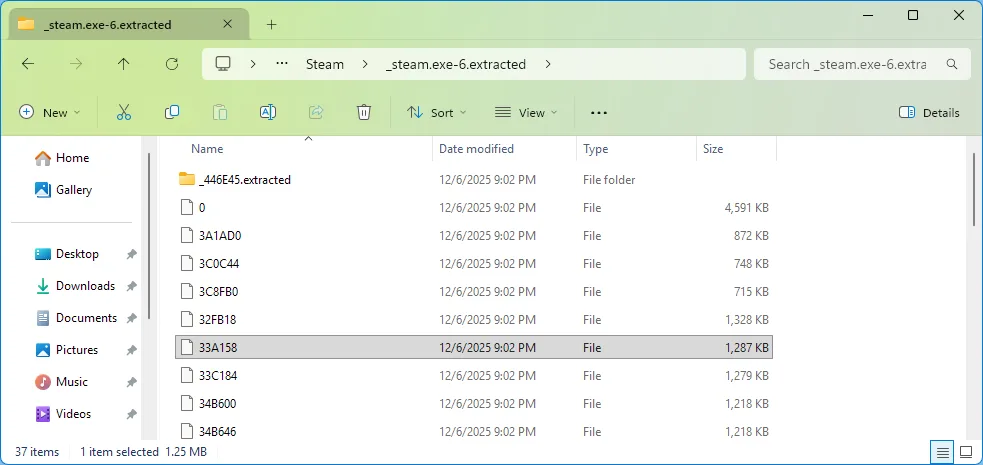
You might have noticed, the files are named the base offset address of the data. That just means its telling us how far from the start of the file the data begins; So from the start of the file, we move X bytes, and begin reading until (in this case) we hit the beginning of the next detected file signature.
Binwalk: Command Arguments
Binwalk v2.3.3
Craig Heffner, ReFirmLabs
https://github.com/ReFirmLabs/binwalk
Usage: binwalk [OPTIONS] [FILE1] [FILE2] [FILE3] …
-B, –signature Scan target file(s) for common file signatures
-R, –raw= Scan target file(s) for the specified sequence of bytes
-A, –opcodes Scan target file(s) for common executable opcode signatures
-m, –magic= Specify a custom magic file to use
-b, –dumb Disable smart signature keywords
-I, –invalid Show results marked as invalid
-x, –exclude= Exclude results that match
-y, –include= Only show results that match
-e, –extract Automatically extract known file types
-D, –dd= Extract signatures (regular expression), give the files an extension of , and execute
-M, –matryoshka Recursively scan extracted files
-d, –depth= Limit matryoshka recursion depth (default: 8 levels deep)
-C, –directory= Extract files/folders to a custom directory (default: current working directory)
-j, –size= Limit the size of each extracted file
-n, –count= Limit the number of extracted files
-0, –run-as= Execute external extraction utilities with the specified user’s privileges
-1, –preserve-symlinks Do not sanitize extracted symlinks that point outside the extraction directory (dangerous)
-r, –rm Delete carved files after extraction
-z, –carve Carve data from files, but don’t execute extraction utilities
-V, –subdirs Extract into sub-directories named by the offset
-E, –entropy Calculate file entropy
-F, –fast Use faster, but less detailed, entropy analysis
-J, –save Save plot as a PNG
-Q, –nlegend Omit the legend from the entropy plot graph
-N, –nplot Do not generate an entropy plot graph
-H, –high= Set the rising edge entropy trigger threshold (default: 0.95)
-L, –low= Set the falling edge entropy trigger threshold (default: 0.85)
-W, –hexdump Perform a hexdump / diff of a file or files
-G, –green Only show lines containing bytes that are the same among all files
-i, –red Only show lines containing bytes that are different among all files
-U, –blue Only show lines containing bytes that are different among some files
-u, –similar Only display lines that are the same between all files
-w, –terse Diff all files, but only display a hex dump of the first file
-X, –deflate Scan for raw deflate compression streams
-Z, –lzma Scan for raw LZMA compression streams
-P, –partial Perform a superficial, but faster, scan
-S, –stop Stop after the first result
-l, –length= Number of bytes to scan
-o, –offset= Start scan at this file offset
-O, –base= Add a base address to all printed offsets
-K, –block= Set file block size
-g, –swap= Reverse every n bytes before scanning
-f, –log= Log results to file
-c, –csv Log results to file in CSV format
-t, –term Format output to fit the terminal window
-q, –quiet Suppress output to stdout
-v, –verbose Enable verbose output
-h, –help Show help output
-a, –finclude= Only scan files whose names match this regex
-p, –fexclude= Do not scan files whose names match this regex
-s, –status= Enable the status server on the specified port
Conclusion
So for now, I think that’s all I have! Play around a bit with the extraction arguments as there are a few different and useful ways you can have everything extracted. Otherwise, using “dd” in linux is by far the easiest if you are just looking to extract a single artifact.
I hope this was at least interesting and something more people will play with as it can be quite a lot of fun.